

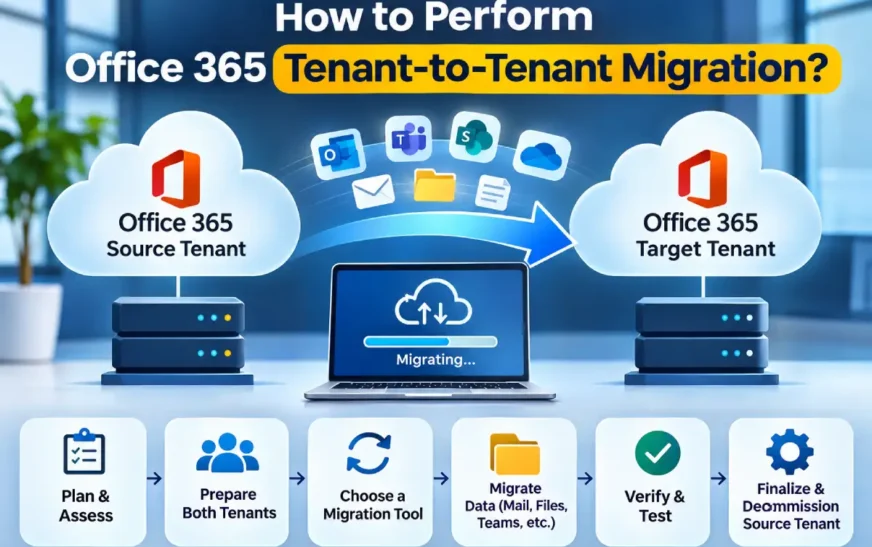
How to Perform Office 365 Tenant-to-Tenant Migration? – Office 365 tenant-to-tenant migration is the process of transferring emails, mailboxes, calendars, contacts, and other data from one Microsoft 365 tenant to another. Organizations may need to perform this migration for various reasons, such as business mergers and acquisitions, changes in organizational ownership, departmental restructuring, or moving to a different Microsoft 365 environment.
Although the migration process can be straightforward with proper planning, administrators must carefully prepare both environments to ensure a smooth transfer of data.
Cross-tenant migration involves preparing the source and destination tenants, configuring permissions, mapping user accounts and mailboxes, transferring data, and verifying the results. Specialized migration tools can simplify the process, particularly when organizations need to move multiple mailboxes.
This guide explains how to perform an Office 365 tenant-to-tenant migration and how specialized migration tools can help make the process easier.
What Is Office 365 Tenant-to-Tenant Migration?
Office 365 tenant-to-tenant migration is the process of transferring user data from one Microsoft 365 tenant to another.
Microsoft 365 tenants are separate organizational environments with their own domains, user accounts, policies, subscriptions, and administrative settings.
Example: When two companies merge, they may decide to consolidate their Microsoft 365 accounts into a single tenant. Instead of merging the two tenants directly, administrators can transfer the required data from one tenant to the other.
The migration process may involve:
- Exchange Online mailboxes and email messages.
- Calendars and scheduled appointments.
- Contacts and mailbox folders.
- User account information.
- Shared and resource mailboxes.
- Distribution groups and permissions.
It is important to understand that not every Microsoft 365 service, setting, or configuration automatically transfers during a tenant-to-tenant migration. Some components require separate configuration or manual recreation in the destination tenant.
Why Do Businesses Need Cross-Tenant Migration?
Organizations may perform cross-tenant migration for several business and technical reasons.
- Business Mergers and Acquisitions: When two businesses merge, they may need to consolidate their Microsoft 365 environments to bring their operations together.
- Organizational Restructuring: Companies may reorganize departments, subsidiaries, or regional operations and consolidate their Microsoft 365 services into a single tenant.
- Business Domain Changes: An organization moving to a new business domain may need to transfer its Microsoft 365 services and associated data to another tenant.
- IT Infrastructure Changes: Companies may move to a new tenant to simplify administration, improve security management, or optimize their IT infrastructure.
- Centralized Management: Managing multiple Microsoft 365 tenants can increase administrative overhead. Consolidating them into a single tenant can simplify user management and administration.
How to Perform an Office 365 Tenant-to-Tenant Migration?
Performing an Office 365 tenant-to-tenant migration requires a structured approach. Follow these steps to prepare both environments and transfer the required data.
Step 1: Assess the Source and Destination Tenants
Before starting the migration, examine both Microsoft 365 tenants to understand their existing configurations and requirements.
The source tenant contains the existing user accounts and mailbox data, while the destination tenant is where the information will be transferred.
Check the following details:
- Number of user mailboxes.
- Total mailbox storage requirements.
- Shared and resource mailboxes.
- Existing email domains.
- Microsoft 365 licenses.
- Security and compliance requirements.
This assessment helps administrators understand the migration scope and identify potential compatibility issues before transferring any data.
Step 2: Prepare the Destination Tenant
The destination tenant must be properly configured before the migration begins.
Create the required user accounts and assign the appropriate Microsoft 365 licenses. Also, ensure that the destination environment has sufficient storage capacity and that Exchange Online is properly configured.
If you intend to use the same custom domain in the destination tenant, follow Microsoft’s domain removal and verification requirements. A custom domain cannot be active in two Microsoft 365 tenants simultaneously.
It is also important to configure the necessary administrative permissions and ensure that the destination mailboxes are ready to receive the migrated data.
Step 3: Configure Migration Permissions
Migration permissions allow the migration application or administrator to access the required mailbox information.
For native Exchange Online cross-tenant mailbox migration, configure the necessary organization relationships, application permissions, and mailbox migration endpoints according to Microsoft’s requirements.
Verify that both environments have the correct permissions and that authentication is working properly.
Incorrect permissions can result in migration failures or prevent access to mailbox data.
Step 4: Map Source and Destination Mailboxes
Mailbox mapping connects each source mailbox with its corresponding destination mailbox.
For example:
| Source Mailbox | Destination Mailbox |
| john@companyA.com | john@companyB.com |
| david@companyA.com | david@companyB.com |
| support@companyA.com | support@companyB.com |
Review the mapping carefully before proceeding. Incorrect mapping may transfer information to the wrong user account.
Step 5: Choose a Suitable Migration Method
Organizations can choose between Microsoft’s native migration capabilities and third-party migration tools, depending on their requirements and supported migration scenarios.
Microsoft Native Migration: Microsoft provides native cross-tenant mailbox migration capabilities for supported Exchange Online configurations. This method requires administrators to configure the source and destination tenants and complete the necessary preparation.
Third-Party Migration Tools: Specialized migration tools can provide additional options for mailbox selection, data transfer, and reporting. They may also simplify the migration process when handling multiple mailboxes or specific migration requirements.
Alternatively, organizations can consider Stellar Migrator for Exchange, which is designed to support Exchange mailbox migration scenarios.
Before selecting a tool, verify its supported source and destination environments, available features, and licensing requirements for the intended tenant-to-tenant migration project.
Step 6: Start the Mailbox Migration
Once both environments are configured and mailbox mapping is complete, begin transferring mailbox data from the source environment to the destination tenant.
For supported native Exchange Online migrations, use Microsoft’s migration batch process.
For third-party software, configure the source and destination connections by following the product documentation.
The time required for migration may range from several hours to longer periods, depending on:
- Number of mailboxes.
- Mailbox sizes.
- Network bandwidth.
- Microsoft 365 service limits.
Before starting a large-scale migration, test the process with a small number of mailboxes. This helps identify potential issues before migrating all users.
Step 7: Verify the Migrated Data
After migration, verify that the transferred information is available in the destination tenant.
Check the following:
- Email messages and attachments.
- Inbox and custom folders.
- Calendar appointments.
- Shared mailbox access.
- User permissions and access.
Ask users to sign in to their new accounts and confirm that important information is accessible.
Also, review migration reports and investigate any failed or skipped items to ensure that the migration has been completed successfully.
How Stellar Migrator for Exchange Can Help
If your organization requires a dedicated tool for mailbox migration, Stellar Migrator for Exchange can be a suitable option.
Before starting a migration, confirm that the software supports your Microsoft 365 environment and the specific source and destination configurations required for your project.
A specialized migration tool can help administrators manage mailbox selection, migration activities, and reporting through a more organized process.
However, administrators should remember that not all Microsoft 365 services, permissions, and tenant-level configurations are automatically transferred during mailbox migration. Some settings and services may require separate configuration in the destination tenant.
Therefore, proper planning, pre-migration testing, and post-migration verification remain essential.
Common Challenges During Office 365 Tenant-to-Tenant Migration
Even with proper preparation, administrators may encounter several challenges during a tenant-to-tenant migration.
- Permission Errors: Access to a mailbox may be denied because of incorrect administrator permissions. Verify the required permissions in both tenants before starting the migration.
- Domain Transfer Issues: Be careful when transferring custom domains because the same domain cannot be verified and active in two Microsoft 365 tenants simultaneously.
- Large Mailbox Sizes: Mailboxes containing large amounts of data may take longer to migrate.
- Incorrect Mailbox Mapping: Incorrect source and destination mailbox mapping may result in data being transferred to the wrong user account.
- Service Configuration Differences: Settings such as email forwarding, mailbox permissions, and retention policies may require separate configuration in the destination tenant.
Testing the migration process before transferring all users can help identify these issues early and reduce potential disruptions.
Best Practices for an Effective Migration
Follow these best practices to make the migration process more reliable:
- Create a complete inventory of source mailboxes.
- Back up important business data before migration.
- Verify Microsoft 365 licenses and permissions.
- Test the migration process with a small group of users.
- Schedule migration activities during periods of low usage.
- Communicate migration timelines to employees.
- Verify mailbox contents after migration.
- Keep the source environment accessible until the migration is fully completed and verified.
Following these practices can minimize disruptions and help maintain business continuity.
FAQs
- What is Office 365 tenant-to-tenant migration?
Office 365 tenant-to-tenant migration is the process of transferring Microsoft 365 data, such as Exchange Online mailboxes, emails, contacts, and calendars, from one Microsoft 365 tenant to another.
- Can I migrate multiple Office 365 mailboxes simultaneously?
Yes. Administrators can migrate multiple mailboxes using migration batches or suitable third-party migration tools that support bulk mailbox processing. The actual capacity and performance may vary depending on the migration method and environment.
- Does tenant-to-tenant migration transfer everything automatically?
No. Although mailbox data can be transferred, some dependencies, such as configurations, permissions, Teams data, SharePoint content, and security settings, may require separate migration or recreation in the destination tenant.
- How long does cross-tenant migration take?
The migration duration depends on mailbox sizes, the number of users, network conditions, Microsoft 365 service limitations, and the migration method used.
- Is third-party software necessary for Office 365 migration?
Not necessarily. Microsoft provides native migration capabilities for supported scenarios. However, organizations may consider third-party migration tools when they need additional functionality or support for specific migration requirements.
Conclusion
Office 365 tenant-to-tenant migration is an important process for organizations undergoing mergers and acquisitions, restructuring, or changes to their IT infrastructure. A successful migration requires proper planning, permission configuration, mailbox mapping, data transfer, and verification.
Organizations can choose between Microsoft’s native migration capabilities and specialized Exchange migration tool tools such as Stellar Migrator for Exchange, depending on their requirements and supported migration scenarios.
With a well-defined migration plan, appropriate tools, and sufficient preparation, organizations can transfer mailbox data to a new tenant while minimizing downtime and business disruption.